Testing in Unity Editor
There are several tools created to make it easy to test your experiences from within the Unity Editor without to need to build and test in a physical Immersive Space. If you enter playmode in the Unity Editor you will enter a simulator based upon the current Simulator Settings.
Simulator Settings
Simulator Setting control how your simulated Immersive Space will look and act. None of the Simulator Settings will affect how your experience works once its built. All simulator settings can be changed which Playmode is running. To Open the Simulator Settings Window open Immersive Interactive > Simulator Settings in the menu bar. This will open a window which you can move and place wherever you want.
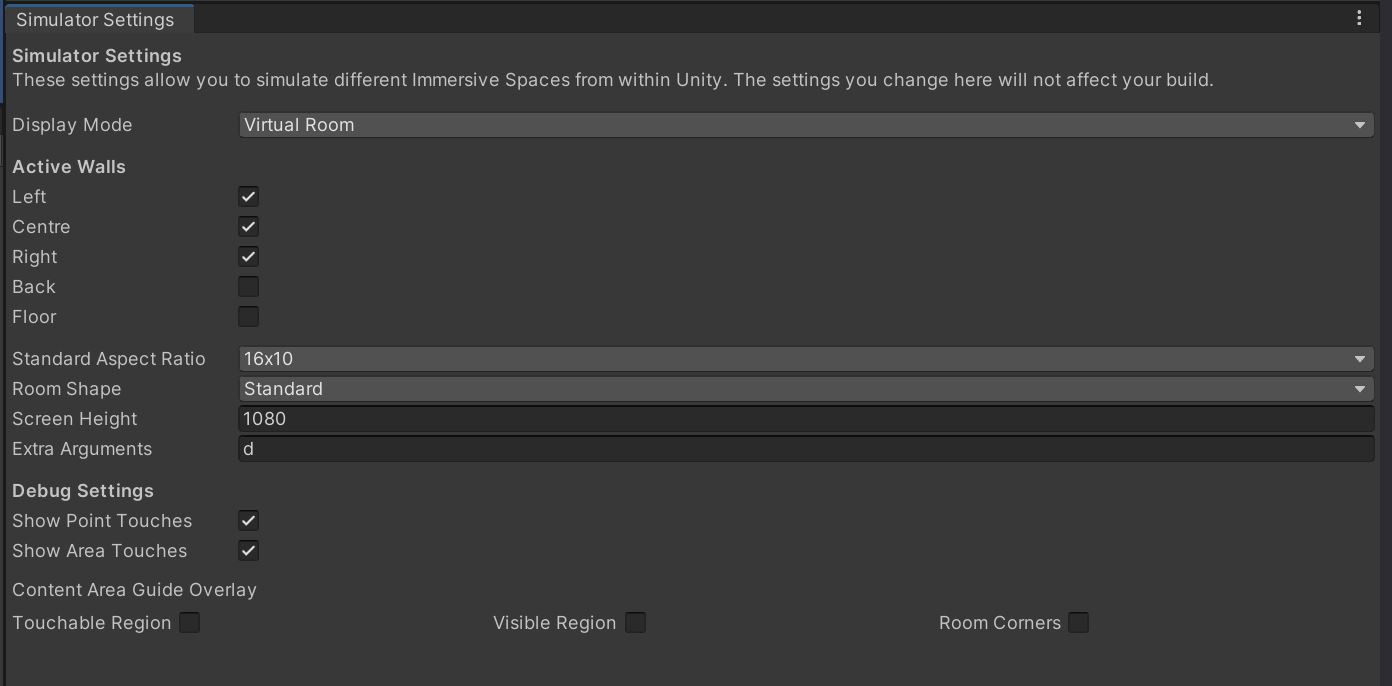
Display Mode
There are two display modes which can be used in the editor, Virtual Room And Flat View.
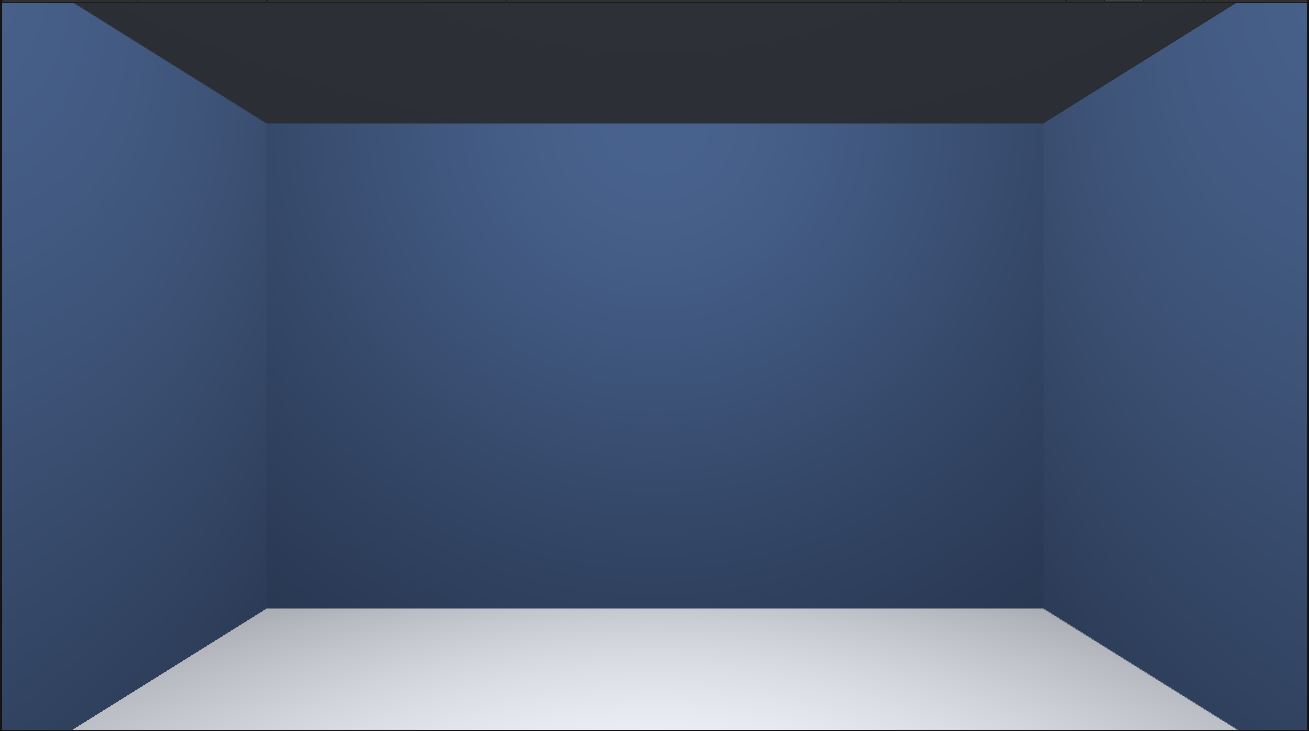 Virtual Room
Virtual Room simulates an Immersive Space in 3D. You can move around this space using the WASD buttons on your keyboards. You can rotate the view by right clicking and dragging. Left clicks will simulate a touch.
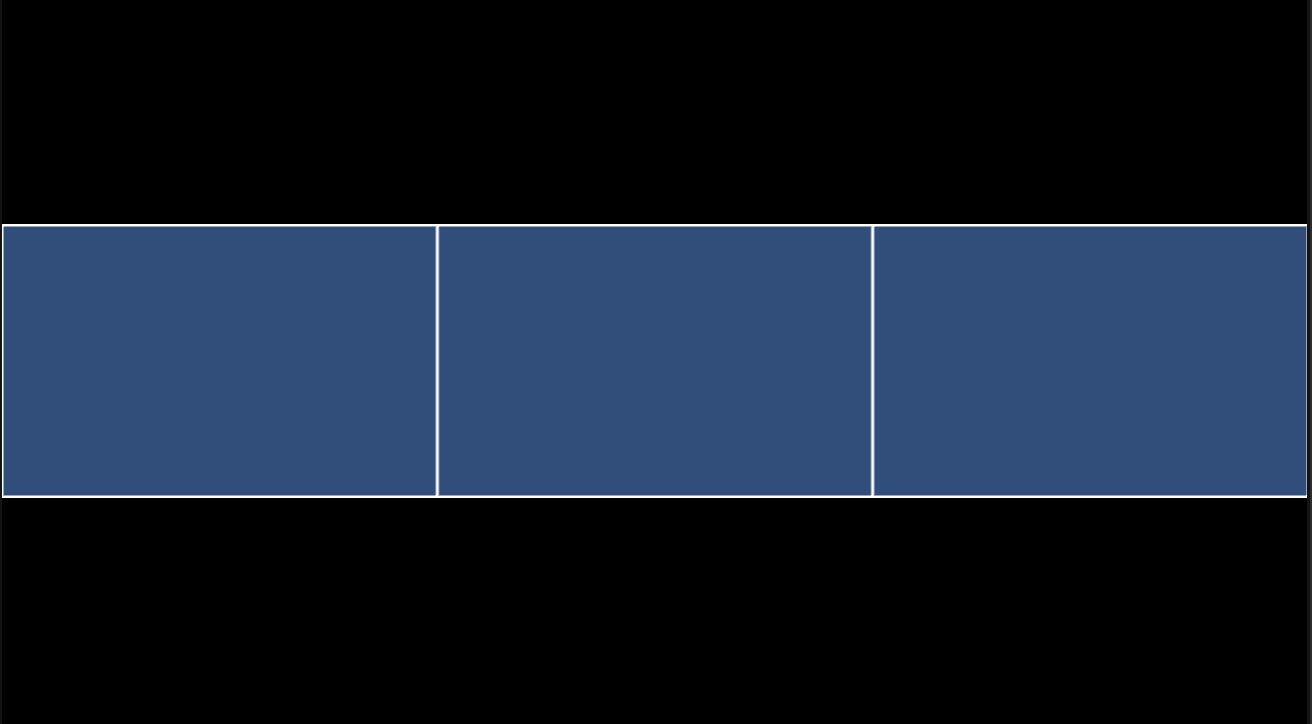 Flat View
Flat view simulates an Immersive Space in a 2D with surfaces aligned in a plane. You can zoom by scolling and pan by right clicking and dragging. Left clicks will simulate a touch.
Room Shape and Layout
- Active Walls
- This allows you to Enable and Disable surfaces depending on how many surfaces the room you are testing with supports.
- Standard Aspect Ratio
- The Aspect Ratio of a standard surface. Wide surfaces will be double this width.
- Room Shape
- The configuration of Standard and Wide walls of the room.
- Options: Standard, Wide and Wide Front.
- Screen Height
- The height in pixels of each surface. Recommended to be set around 1080.
For further information on the Simulator Settings please read the Simulator Settings Article.
Input
When in the Simulator mouse clicks will simulate touches in accordance with the Immersive Manager Input Handling Settings. If Area Touches are enabled are an small circle around a click will simulate the effects of the Area Touch.